How to watch IPTV on a Windows PC
The best way to watch IPTV on a Windows PC is a dedicated IPTV player: install it, add the Xtream Codes login or M3U link your provider gave you, and you get live TV with a TV guide, films and series in one window, driven by keyboard and mouse. This guide shows how to do it with Telyqro on Windows 10 and 11 (and on Linux), including the SmartScreen warning you will see during install, the keyboard shortcuts, and what to check if a channel won’t play.
Why use an IPTV player instead of a browser or a media player?
You can open an M3U link in a general media player, and some streams even play in a browser. It works for one channel. It falls apart when you use it like a TV:
- No structure. A media player shows an M3U as one long list of thousands of entries. An IPTV player splits it into live TV, films and series, each with its categories.
- No TV guide. You can’t see what is on now or next, or browse tonight’s programmes, without a player that reads the guide data from your playlist.
- No memory. Favorites, the last channel you watched, and where you stopped a film are gone the next time you open it.
- Big playlists choke. Many playlists hold 100,000 entries or more. Telyqro imports 300,000 entries in about 3.6 seconds on a desktop, in the background, and the lists stay smooth at that size.
A dedicated player also handles the details that make live TV pleasant: channel up and down within a category, typing a channel number, jumping back to the previous channel, search across everything, and catch-up where your provider offers it.
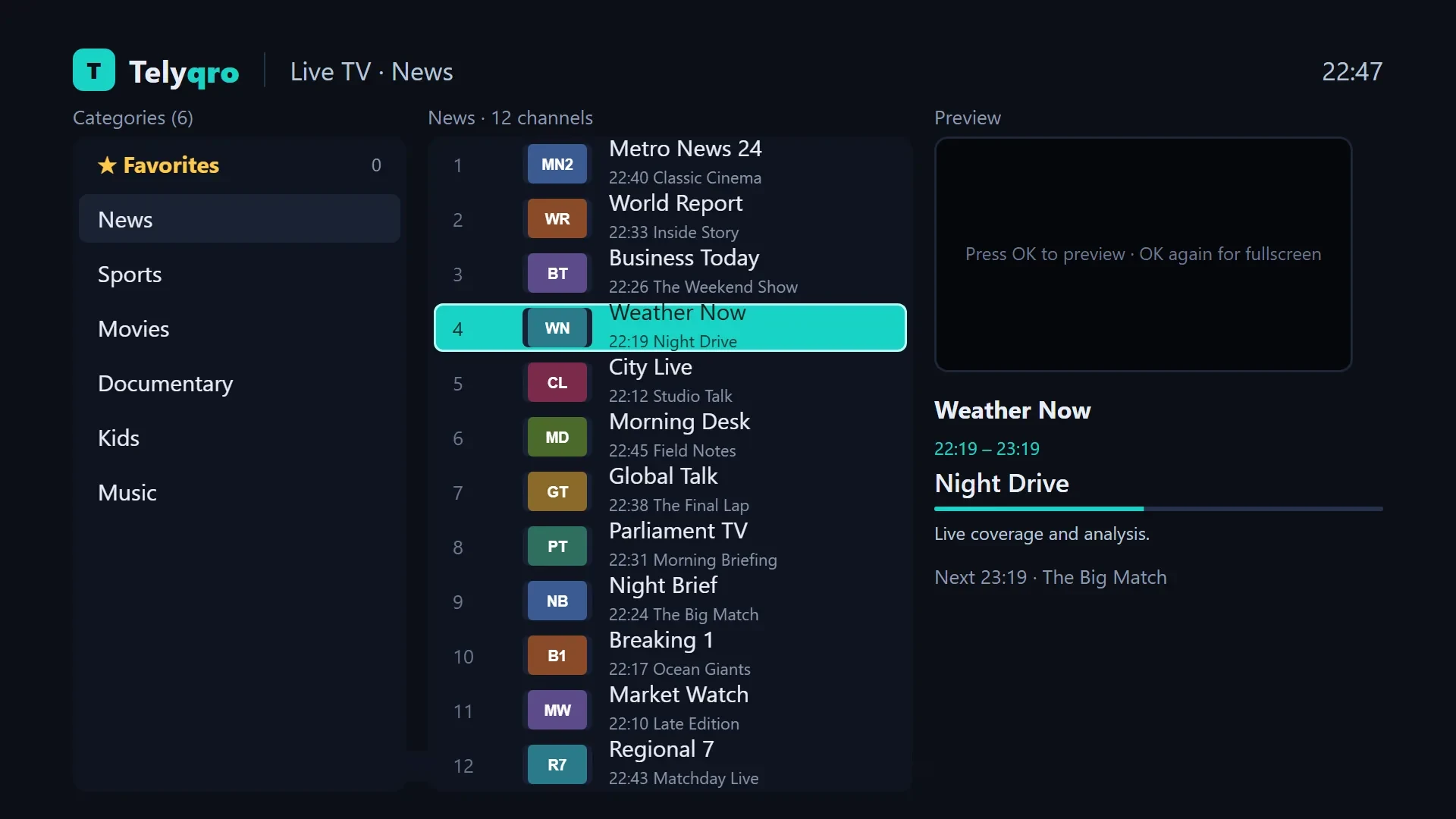
What you need
- A PC with 64-bit Windows 10 or Windows 11.
- Your playlist details from the service you subscribe to: either an Xtream Codes login (server address, username and password) or an M3U link. Not sure which one you have? See Xtream Codes vs M3U.
- A wired or good Wi-Fi connection.
Telyqro is a player only. It includes no channels, films or series: everything you watch comes from your own provider. Use a service you are legally entitled to watch.
How to download and install Telyqro on Windows
- Open the Telyqro download page on your PC and choose Windows. You get a file named like
Telyqro-Setup-1.x.x.exe, always the latest version. If your browser says the file isn’t commonly downloaded, choose to keep it. - Open the downloaded file.
- If a blue window says Windows protected your PC, click More info, check that the app named is the Telyqro setup file, then click Run anyway (see the note below for why this appears).
- Follow the installer. It installs for your Windows user only, so it doesn’t ask for administrator rights. It adds Telyqro to the Start menu, and you can tick an extra box for a desktop shortcut.
- Leave the box to launch Telyqro ticked on the last page and click Finish.
Updates come from inside the app. When a new version is out, Telyqro tells you; choose to update and it downloads the new version, checks it, installs it and starts again. Your playlists, favorites and settings stay, even if you uninstall and reinstall later.
First start: your free trial and Device ID
There is no account to create. The first time Telyqro starts, it gives your PC a Device ID and a Device Key and starts a 14-day free trial: every feature, no card. Reinstalling doesn’t restart it.
With no playlist yet, the Playlists page opens with “Add your TV channels”: a QR code, your Device ID and Device Key, and a button to add them here instead. On a PC, typing the details into the app is usually quickest. You can also sign in on telyqro.com with the Device ID and Device Key and add the playlist there; it arrives in the app by itself.
When the trial ends, the app shows its activation screen with the same Device ID, Device Key and QR code. Choose Yearly or Lifetime on the activation page (each plan covers one device; see pricing). Pay with PayPal (cards included) or cryptocurrency, and the app picks the plan up within 30 seconds. Payments happen only on the website; the app never charges you.
Add your Xtream Codes login or M3U link
- Open Playlists from the side menu and choose Add playlist (on the empty page, the button reads “Add them here instead”).
- Pick Xtream Codes and fill in Server URL, Username and Passwordexactly as your provider sent them. Or pick M3U URL and paste the full link (it starts with http:// or https://).
- Give it a Name if you like and save. The import runs in the background, so you can start browsing while it finishes.
If you paste an M3U link that is really an Xtream server (a get.php link), Telyqro recognises it and offers to import it in Xtream mode, which loads faster and supports series. The TV guide comes from the playlist or the Xtream login; if your provider gives a separate guide link, add it by editing the playlist. More on that in fixing a TV guide that won’t show, and on links and files in what an M3U playlist is.
Keyboard and mouse shortcuts
Everything works with the mouse: the side menu on the left takes you to Home, Live TV, Movies, Series, Search, Favorites, Recently watched, Playlists and Settings. In the player, these keys work:
| Key | What it does |
|---|---|
| Space | Play or pause |
| ↑ ↓ or Page Up Page Down | Previous or next channel in the category (live TV) |
| 0 to 9 | Type a channel number; it jumps after two seconds or when you press Enter |
| L | Back to the last channel you watched |
| Enter | Open the quick channel list over the video (live TV) |
| ← → | Films and episodes: back 10 seconds or forward 30 seconds |
| M, + and - | Mute, and volume up or down in 5% steps |
| I | Stream info: resolution, codecs, bitrate, buffer and more |
| Esc | Back |
With the mouse, moving over the video shows the controls, a double click plays or pauses, and the wheel over the video changes the volume. Hover over a button to see its name and its key. A right click on any channel, film, series or group opens its menu (add to favorites, lock and more), and the star on every row adds a favorite in one click. In the TV guide, Home or N jumps back to now.
What plays it: libmpv
On Windows and Linux, Telyqro plays video with libmpv, the playback engine of the open-source mpv project. It handles live TS and HLS streams and films in MP4 and MKV, with audio and subtitle track selection. When a live stream stalls, Telyqro reconnects by itself. If a provider works better in one format, you can choose TS or HLS for live channels in Settings, and a playlist that needs a custom User-Agent can have one (edit the playlist).
Streams go straight from your provider to your PC; they never pass through Telyqro. So if a channel stutters, the cause is usually the network or the provider’s server. Our guide to IPTV buffering and freezing walks through the checks, and the stream info panel (I) shows the download speed and buffer while you test.
Telyqro on Linux and macOS
Linux: the Linux download is a single AppImage file for 64-bit (x64) PCs, with libmpv included. It needs a distribution about as recent as Ubuntu 24.04 or newer (glibc 2.39 or later). Download it from the download page, make it executable (in your file manager’s Properties, or with chmod +x in a terminal) and open it. There is nothing to install, and in-app updates replace the file in place. The trial, activation, playlists and shortcuts are the same as on Windows.
macOS: coming soon, for Apple silicon and Intel Macs. Until then, any of your other devices can run Telyqro: compare the options in how to choose an IPTV player or see all features.
Questions
Can I watch IPTV on my PC without installing an app?
Sometimes, for a single channel, in a browser or a general media player. You won’t get a TV guide, categories, favorites, resume or catch-up, and large playlists are slow to open. A dedicated player gives you all of that.
Is Telyqro free on Windows?
It is free for 14 days with every feature and no card. After that you buy a Yearly or Lifetime plan for that PC on telyqro.com. Your IPTV subscription is separate and comes from your provider.
Is it safe to click Run anyway?
For a file you downloaded yourself from telyqro.com, yes: the warning appears because the installer is not signed yet, not because something was found. Never run a copy of any installer that someone sent you or that came from another site.
Can I use the same playlist on my PC and my TV?
Yes, add it on each device. Each device has its own trial and plan. Your provider decides how many devices can stream at the same time, so check your subscription’s connection limit.
Every feature on every device, no card needed. Add your playlist and start watching in about a minute.
Keep reading
What is an M3U playlist, and how do you open one?
What M3U and M3U8 files are, what is inside one, how M3U links and get.php URLs work, and how to open an M3U playlist on a TV, phone or computer.
8 min readXtream Codes vs M3U: which login should you use?
Xtream Codes or an M3U link? How the two IPTV logins differ for the TV guide, films, series and catch-up, and which one to pick in your player.
7 min readHow to choose an IPTV player: a 12-point checklist
What separates a good IPTV player from a frustrating one: big-playlist speed, the TV guide, catch-up, remote control, parental locks, privacy and price.
8 min read