How to install an IPTV player on a Fire TV Stick
To install an IPTV player on a Firestick, you get the free Downloader app from the Amazon Appstore, allow it to install apps, then type the code 7619545 in Downloader. That code installs the latest version of Telyqro. Open it, add the playlist from your provider, and you are watching live TV in a few minutes. The whole thing takes about five minutes and works the same on a Fire TV Stick, a Fire TV Cube and a Fire TV smart TV.
Which Fire TV devices work?
Telyqro runs on Fire TV devices with Fire OS, Amazon’s Android-based system. That covers almost every model in use today:
- Fire TV Stick (3rd generation) and Fire TV Stick Lite
- Fire TV Stick 4K (1st and 2nd generation), Fire TV Stick 4K Max and 4K Plus
- Fire TV Cube (all generations)
- Smart TVs with Fire TV built in, such as Fire TV Omni models and TVs from partner brands
Two exceptions. Very old sticks still on Fire OS 5 are too old for the app, which needs Fire OS 6 or later. And some of Amazon’s newest sticks run a different system, Vega OS, which doesn’t allow apps from outside the Appstore and doesn’t run Downloader at all. According to AFTVnews, that applies to the Fire TV Stick 4K Select, the 2026 Fire TV Stick HD and the 3rd-generation Fire TV Stick 4K from 2026. Telyqro isn’t available for Vega OS.
You also need an internet connection, a few hundred megabytes of free storage (the installer alone is about 100 MB), and a playlist from a service you are entitled to use: an Xtream Codes login or an M3U link. Telyqro is a player and includes no channels. Not sure which login you have? Read Xtream Codes vs M3U first.
Step 1: install Downloader from the Amazon Appstore
Downloader is a free app made by AFTVnews. It is in the official Amazon Appstore and lets you install apps by typing a short number code instead of a long web address.
- On the Fire TV home screen, open the search (the magnifying glass).
- Type “Downloader” and pick the app with the orange icon.
- Select Get or Download. It installs like any other Appstore app.
- Open Downloader once and allow access to files if it asks. It needs this to save the download.
Step 2: let Downloader install apps
Fire TV only installs apps from the Appstore until you allow another app to do it. You give that permission to Downloader, and only to Downloader. The setting is in Developer options, which newer Fire TVs hide until you reveal it.
Reveal Developer options
- Open Settings (the gear icon), then My Fire TV. On a Fire TV smart TV, open Device & Software.
- If you already see Developer options in that list, skip to the next part.
- Open About. Highlight the first line, the one with your device’s name.
- Press the select button on your remote seven times, quickly. A countdown appears at the bottom of the screen, then a message saying you are already a developer.
- Press Back once. Developer options now shows under My Fire TV.
Turn on Install unknown apps for Downloader
- Open Developer options, then Install unknown apps.
- Find Downloader in the list and switch it on.
On older Fire OS versions there is no list: the setting is a single switch called Apps from Unknown Sources. Turn it on. Either way, this does not change anything else on your Fire TV, and you can switch it off again after you install Telyqro.
Step 3: enter code 7619545 in Downloader
- Open Downloader. On its Home tab there is a box for a web address or code.
- Select the box and type 7619545 with the on-screen keyboard. Then select Go.
- Downloader fetches the Telyqro installer. On a good connection this takes well under a minute.
- The Fire TV installer opens. Select Install, wait a moment, then select Open (or Done to open it later).
- Back in Downloader, it offers to delete the installer file. Choose Delete, and confirm. The app stays installed and you get the storage back.
The code always points at the newest Android build of Telyqro, so you never need to hunt for a version number. The same code is listed on the Telyqro download page.
Step 4: open Telyqro and find your Device ID
The first time you open Telyqro it registers your Fire TV and starts the free trial by itself: 14 days, every feature, no card and no account to create. The Home screen opens with a Telyqro subscription card that shows your plan, the days left, your Device ID and your Device Key. You can also find both under Settings, in the Device section.
Write the Device ID and Device Key down or keep the screen handy. They are how you sign in on telyqro.com to add playlists or buy a plan for this Fire TV. When the trial ends, the app shows an activation screen with the same two codes and a QR code. Scan it with your phone and the site opens with your Device ID already filled in.
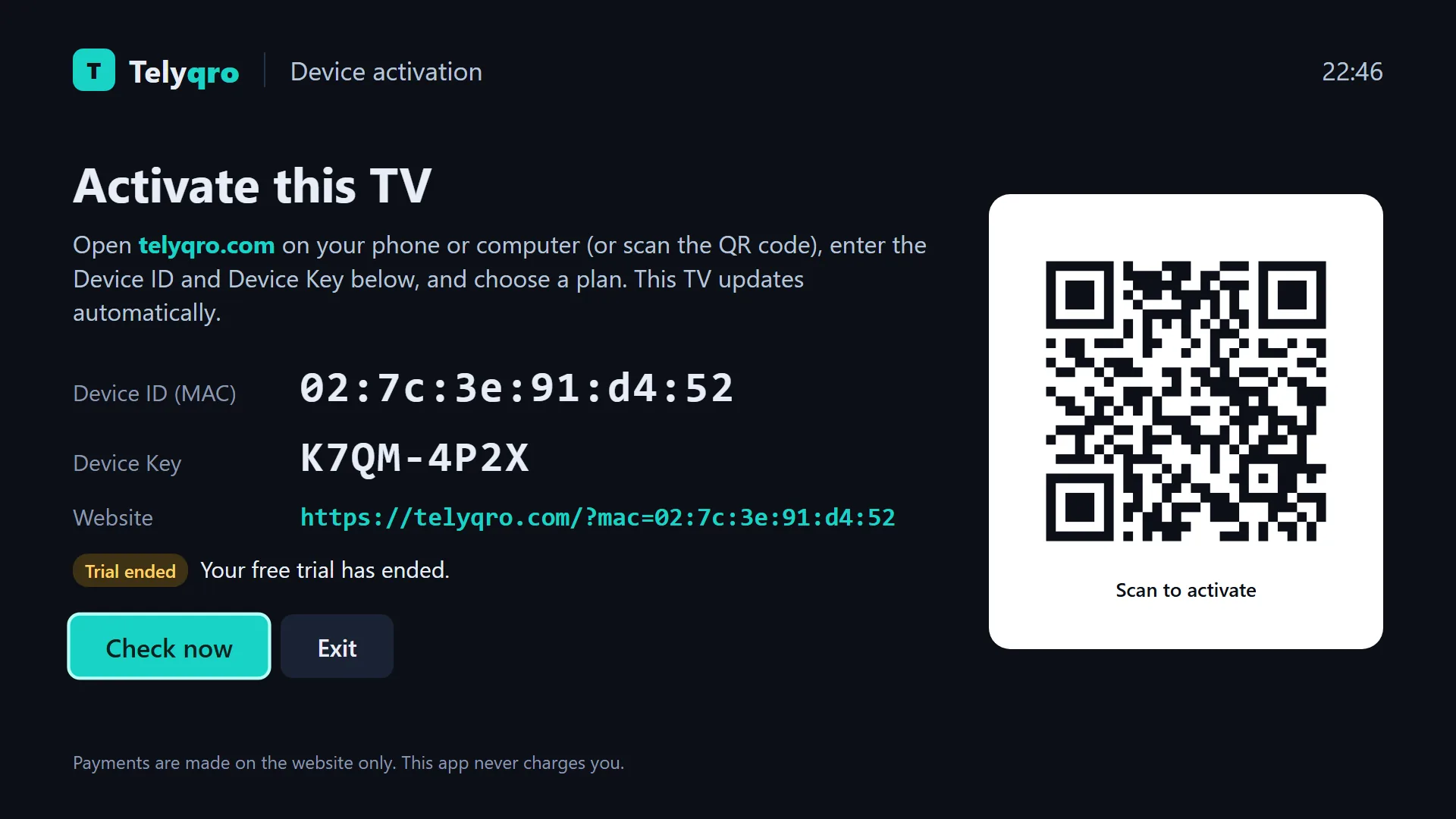
Plans are Yearly or Lifetime, per device, and you buy them on the website, never in the app. See the current plans and prices. Once you pay at telyqro.com/activate, the Fire TV picks the plan up within 30 seconds.
Step 5: add your playlist
You can add a playlist on the Fire TV itself, or from your phone or computer. Use whichever is easier to type on.
On the Fire TV
- Open Playlists from the side menu and select Add playlist.
- Choose Xtream Codes and fill in Server URL, Username and Password from your provider, or choose M3U URL and enter the full link.
- Give it a name and save. Telyqro imports the channels, films and series in the background.
If your provider gave you a long link containing get.php, paste it as an M3U URL: Telyqro recognises it and offers to switch to Xtream mode, which loads faster and includes series.
On telyqro.com
Typing a password with a remote is slow. Instead, go to telyqro.com/activate on your phone or computer, sign in with the Device ID and Device Key, and add the playlist there. It arrives on the Fire TV by itself. You can also upload an M3U file this way.
If channels show but the TV guide stays empty, the fix is usually a missing guide link. Our guide on fixing an empty IPTV TV guide walks through it.
Step 6: put Telyqro at the front of your apps
Sideloaded apps land at the end of your apps list. To bring Telyqro forward, open the full list of your apps, highlight Telyqro, press the Options button on the remote (the one with three lines) and choose Move, or Move to front if your version offers it. Then press select to drop it where you want. The exact wording depends on which Fire TV home screen you have, but the Options button is the way in on all of them.
How to update Telyqro later
When a new version is out, Telyqro shows an Update available card at the top of Home. Select Download and install. The first time, Fire TV asks whether Telyqro may install apps: turn on Allow from this source, press Back, and the update continues. You can also check by hand under Settings, Software update, Check now.
Prefer Downloader? Enter 7619545 again and install over the old version. Your playlists, favorites and settings stay, because it is the same app.
Troubleshooting
The code doesn’t work in Downloader
Check the digits: 7619545. Make sure you typed it in Downloader’s address box on the Home tab, not in a search box. If it still fails, type the full address https://api.telyqro.com/v1/downloads/android/latest in the same box. It downloads the same file.
Downloader is not in the Install unknown apps list
Install Downloader from the Appstore first; it only appears in the list once it is installed. AFTVnews reported a Fire OS bug in 2026 that left some apps out of the list, and Amazon has released a fix. Go to Settings, My Fire TV, About, Check for Updates, install any update, restart, and look again.
“App not installed”
- Not enough space. Delete old installer files in Downloader and remove apps you don’t use (Settings, Applications, Manage Installed Applications). Then try again.
- An interrupted download. Delete the file in Downloader and enter the code again.
- An older copy from somewhere else. If you installed Telyqro another way before, uninstall it, then install with the code. The same Fire TV keeps the same Device ID, so your trial or plan is unchanged, playlists added on telyqro.com come back by themselves, and Telyqro offers to restore your favorites and settings from its backup.
Downloads are slow or stop
Restart the Fire TV and your router. If you use a VPN or a custom DNS on the stick or the router and downloads stall, pause it while you install, then turn it back on. For playback problems after installing, see IPTV buffering and freezing fixes.
Questions
Do I need to jailbreak my Firestick?
No. “Jailbreak” is just a nickname for allowing apps from outside the Appstore, which is the Install unknown apps switch in Step 2. Nothing is hacked and your Fire TV keeps updating normally.
Is it legal to install an IPTV player on a Fire TV Stick?
A player like Telyqro is ordinary software, like a video player on a computer. It contains no channels. What you watch depends on the playlist you add, so use a service you are legally entitled to watch.
Why can’t I find Developer options on my Firestick?
Newer Fire TVs hide it. Open Settings, My Fire TV, About and press select seven times on your device’s name. If your stick runs Vega OS, there is no such option and sideloading isn’t possible.
Is Telyqro free on Fire TV?
You get 14 days free with every feature and no card. Reinstalling doesn’t restart the trial. After that you choose a Yearly or Lifetime plan for that device on telyqro.com.
Can I use one plan on several Fire TV Sticks?
Plans are per device. Every Fire TV has its own Device ID, its own free trial and its own plan, and you can add the same playlist to all of them if your provider allows it.
Every feature on every device, no card needed. Add your playlist and start watching in about a minute.
Keep reading
How to watch IPTV on Android TV and Google TV
Get an IPTV player on Android TV, Google TV, Chromecast, Shield or a TV box: install the app, add your Xtream or M3U playlist and set up the TV guide.
7 min readXtream Codes vs M3U: which login should you use?
Xtream Codes or an M3U link? How the two IPTV logins differ for the TV guide, films, series and catch-up, and which one to pick in your player.
7 min readIPTV buffering and freezing: fixes that actually work
Why IPTV streams buffer, freeze or drop, and what fixes them: your network, Wi-Fi vs cable, TS vs HLS, the player, the User-Agent and the provider.
8 min read