IPTV TV guide (EPG) not showing? How to fix it
When the IPTV EPG is not showing, the player either has no guide link to download, cannot match your channels to the guide’s channels, or is showing the right programmes at the wrong time. Almost every empty, partial or shifted TV guide comes down to one of those three. This guide explains where the guide comes from, how to work out which problem you have, and how to fix each one, in about the order you should check them.
What is an EPG, and where does your player get it?
EPG stands for electronic programme guide: the list of what is on each channel, now and later. IPTV guides almost always come as an XMLTV file, a plain XML document with two parts. The first lists channels, each with an ID. The second lists programmes, each with a start time, an end time, a title and the ID of the channel it belongs to. The file is often compressed with gzip (it then ends in .xml.gz), because a full guide for thousands of channels can be very large.
The guide is separate from the channels themselves. Your player can find it in one of three places:
- Xtream Codes login. The provider’s server publishes the guide at an address ending in
xmltv.php, built from the same server, username and password you log in with. A player that supports Xtream finds it on its own. - The M3U header. The first line of an M3U playlist can carry the guide address in a
url-tvg(orx-tvg-url) attribute, for example#EXTM3U url-tvg="https://…/guide.xml.gz". - A separate XMLTV link. Some providers send the guide address on its own, next to the M3U link, and expect you to paste it into the player.
If you are not sure which kind of login you have, our guide to Xtream Codes vs M3U explains the difference, and why Xtream logins usually get a guide with no extra setup.
Why is my IPTV guide completely empty?
A guide that is blank on every channel usually means the player has no guide address at all, or cannot download the one it has. This is most common with M3U links: plenty of playlists have a bare #EXTM3U first line with no url-tvg, so the player has nothing to fetch.
- Check whether your provider gave you a separate EPG or XMLTV link. It is often in the welcome email or the provider’s customer area. If there is one, enter it in your player’s EPG field.
- Open the guide link in a browser on a computer. It should download a
.xmlor.xml.gzfile, or show XML text. An error page, a login page or an empty file means the problem is on the provider’s side. - If you have an Xtream login but use it as an M3U link, try adding it as Xtream Codes instead (server, username, password). The guide then comes from
xmltv.phpautomatically. - Ask your provider whether they supply a guide at all. Some services simply don’t.
Guide shows for some channels but not others
This is the most common EPG problem, and it is about channel IDs. The player does not match channels to the guide by name. Each channel in an M3U playlist carries a tvg-id attribute (Xtream has an equivalent field per channel), and each channel in the XMLTV file has an id. Programmes only appear when the two are the same.
#EXTINF:-1 tvg-id="metronews24.uk" group-title="News",Metro News 24
<channel id="metronews24.uk">
Channels go blank in the guide when:
- The channel has no
tvg-idat all, or an empty one. There is nothing to match, so it never gets a guide. - The IDs are close but not identical:
metronews24.ukin the playlist andMetroNews24.ukormetronews24in the guide. Some players treat case differences as a mismatch too. - You are using a guide from a different source than your playlist. A guide made for one provider’s lineup uses that provider’s IDs, and rarely lines up with another’s.
You can check this yourself: open the M3U file in a text editor, copy a missing channel’s tvg-id, and search for it in the XMLTV file. If it is not there, the fix belongs to whoever makes the playlist and the guide, which is your provider. Send them the channel names and IDs that don’t match. Editing IDs by hand works, but the next playlist update usually puts the old ones back. More on what each attribute in a playlist line does is in what an M3U playlist is.
The provider’s guide is empty for some channels
Sometimes the IDs match and the channel is listed in the XMLTV file, but it has no programmes, or only a day of them. Smaller, regional and event channels are often in this state. No player setting can add listings that are not in the file. Open the guide file, find the channel’s ID and look for <programme lines with that channel. If there are none, report it to your provider.
Guide times are wrong or shifted by an hour
If the guide shows real programmes but at the wrong time, so the show listed as “now” is actually the one that ended an hour ago, look at time zones and clocks.
- Your device’s clock and time zone. A player works out what is on “now” from your device’s clock, and shows times in your device’s time zone. A TV box with the wrong date, time or zone shows the wrong programme as live. In the device settings, turn on automatic date and time, and check the time zone is where you are.
- The offset inside the guide file. Every programme time in an XMLTV file should carry its own offset from UTC, such as
20261101200000 +0100. If the provider writes local times with a wrong offset, or no offset where one is needed, every programme is shifted by the same amount. If your clock and time zone are right and everything is still off by exactly one or two hours, that is the cause, and it is most common just after a daylight saving change. Tell your provider; it is a fault in their file.
Guide not loaded yet, or out of date
A guide covers a few days at most, so players download it again on a schedule. Two timing problems look like a broken guide:
- The first download is still running. A full guide for a large playlist can be hundreds of megabytes once unpacked, and a TV stick takes a while to read it. Right after adding a playlist, give it a few minutes before deciding the guide is missing.
- The guide ran out. If the player has not refreshed for days (it was never opened, or the download kept failing), listings simply stop at the end of the last file. Opening the app and leaving it on the home screen for a few minutes usually lets it catch up. Re-importing the playlist forces a fresh start.
How Telyqro handles the TV guide
Telyqro was built to make the guide work without fiddling, and to make it easy to fix when the provider’s data needs help. On Android, Android TV, Fire TV, Windows and Linux:
- It finds the guide on its own. Telyqro uses the EPG URL you set on the playlist if there is one, otherwise the
url-tvgin the M3U header, otherwise the Xtreamxmltv.php. An M3U link that is really an Xtreamget.phplink is recognised, so it gets the Xtream guide too. - You can set your own guide link. On the Playlists screen, edit the playlist and fill in EPG URL (optional). You can enter more than one address, separated by commas. Saving reloads the playlist and fetches the new guide.
- Gzip and very large guides are fine. Telyqro detects compressed files by itself and imports the guide in the background, so the lists stay usable while it loads. It keeps the listings your channels need, from 12 hours ago to four days ahead (further back for channels with catch-up).
- Matching ignores capital letters. A
tvg-idofMetroNews24.ukstill matchesmetronews24.ukin the guide. A channel with no ID at all can’t be matched. - It refreshes by itself. The guide updates in the background every 12 hours by default. Under Settings › Auto-refresh, Update the TV guide can be set to every 6 hours, every 12 hours or daily. A failed download keeps the guide you already have.
- The playlist’s User-Agent is used for the guide too. Some providers refuse downloads from unknown apps; if you set a custom User-Agent on the playlist, the guide download sends it as well.
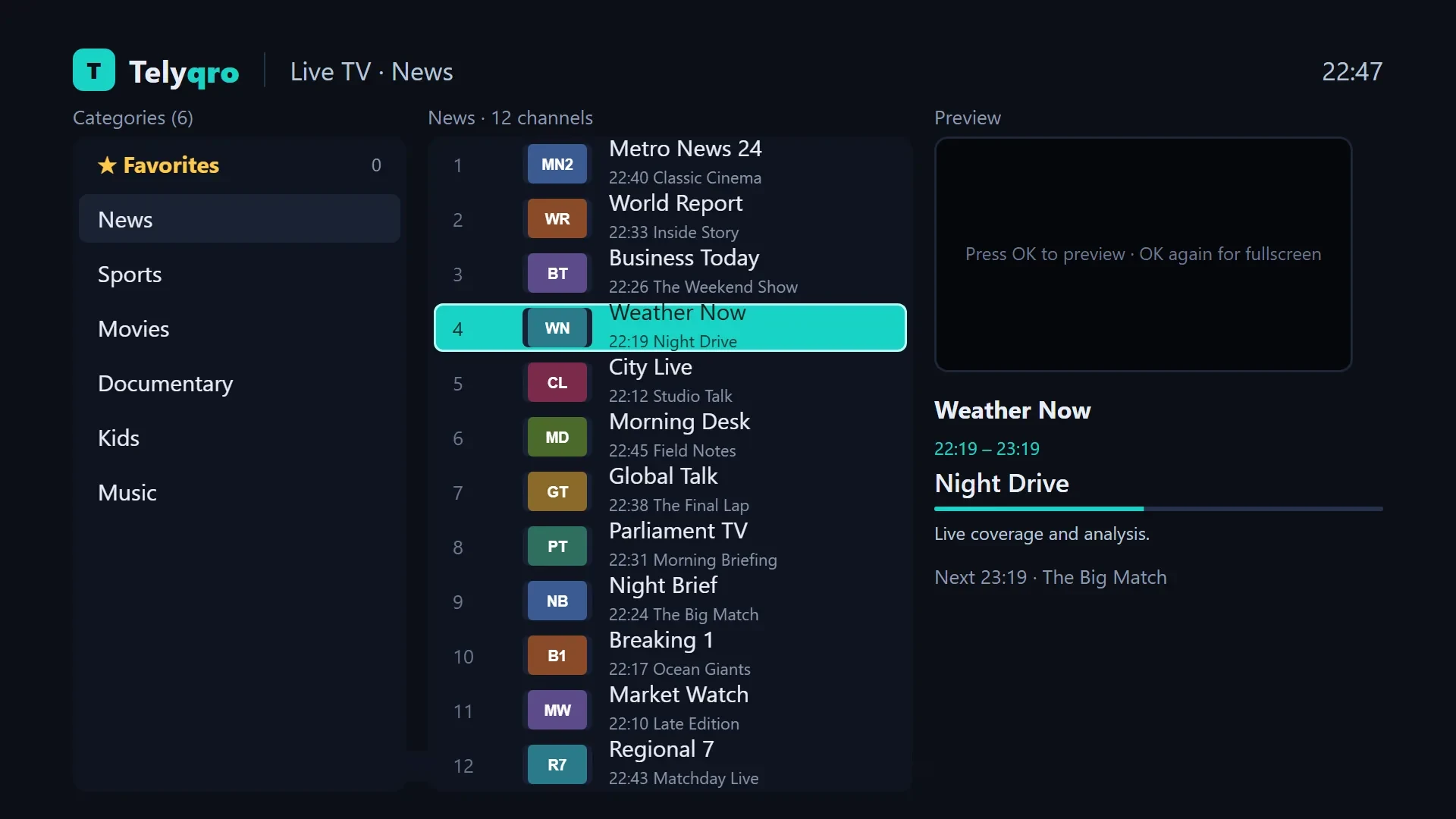
The guide shows up in three places: now and next on every channel row (with a progress bar), in the quick channel list over the video, and in the full TV Guide grid, with a category filter, a 30-minute time axis and a line marking now. For Xtream logins, if the guide file has nothing for a channel, Telyqro asks the provider’s server for that channel’s short schedule, so the row can still show what is on. Everything is on the full feature list.
If the guide screen says No TV guide for this playlist yet, Telyqro found no guide address or could not download it (while a download is running, it says Loading the TV guide… instead). Check the guide link as described above.
Questions
Why does my IPTV guide say “No information”?
The player found a guide but has no programmes for that channel at that time. Either the channel’s ID doesn’t match anything in the guide, or the provider’s guide has no listings for it. Other channels showing listings is a sign of the first; check the channel’s tvg-id against the guide file.
Can I use a different EPG source from my playlist?
You can, if the player has an EPG URL field (Telyqro does, on each playlist). It only helps if the other guide uses the same channel IDs as your playlist, which is rarely the case for a guide made for a different lineup.
How often does an IPTV guide update?
Providers usually rebuild their guide once or twice a day, and players download it on their own schedule. Telyqro checks every 12 hours by default, and you can choose every 6 hours or once a day.
Why is the TV guide an hour off after the clocks change?
Either your device didn’t pick up the change (turn on automatic date and time) or the provider’s guide file still carries the old UTC offset. If your device clock is right, the fault is in the file, and the provider needs to fix it.
Does a guide problem stop channels from playing?
No. The guide and the streams come from separate addresses, so channels play normally with an empty guide. If channels are also failing or stalling, see how to fix IPTV buffering. To try Telyqro’s guide with your own playlist, download Telyqro for your device.
Every feature on every device, no card needed. Add your playlist and start watching in about a minute.
Keep reading
Xtream Codes vs M3U: which login should you use?
Xtream Codes or an M3U link? How the two IPTV logins differ for the TV guide, films, series and catch-up, and which one to pick in your player.
7 min readIPTV catch-up explained: watch programmes you missed
What IPTV catch-up (timeshift, TV archive) is, which playlists support it, and how to watch a past programme from the start in your IPTV player.
7 min readIPTV buffering and freezing: fixes that actually work
Why IPTV streams buffer, freeze or drop, and what fixes them: your network, Wi-Fi vs cable, TS vs HLS, the player, the User-Agent and the provider.
8 min read