How to watch IPTV on Android TV and Google TV
To watch IPTV on Android TV or Google TV, install an IPTV player app, add the playlist from your provider, and point the app at a TV guide. With Telyqro that means installing the free Downloader app from Google Play on your TV, entering the code 7619545, and adding your Xtream Codes login or M3U link. The same app runs on a Google TV Streamer, a Chromecast, an Nvidia Shield, a TV box, a smart TV, and on Android phones and tablets.
Which Android TV and Google TV devices work?
Any device running Android TV or Google TV on Android 7 or later. In practice, that is nearly all of them:
- Google TV Streamer and Chromecast with Google TV (4K and HD)
- Nvidia Shield TV and Shield TV Pro
- Android TV boxes and sticks, including operator boxes that run Android TV
- Smart TVs with Google TV or Android TV built in, from Sony, TCL, Philips, Hisense and others
- Android phones and tablets
Watch out for TV brands that sell several systems. Some Hisense, Philips and TCL models run a different operating system, not Google TV. If your TV’s home screen has the Google Play Store, you’re on Android TV or Google TV.
Telyqro is a player: it includes no channels. You need a playlist from a service you are entitled to use, either an Xtream Codes login (server, username, password) or an M3U link. If you are unsure which one you have, read Xtream Codes vs M3U.
Install Telyqro with Downloader
This is the easiest way on a TV, because you only type seven digits. Downloader is a free app by AFTVnews, and it is in the Google Play Store for TV.
- Open the Google Play Store on the TV (on Google TV: the Apps tab, or search). Search for “Downloader” and install the app with the orange icon. If it doesn’t show up, search for “AFTVnews”.
- Open Downloader and allow access to files if it asks.
- In the address box on its Home tab, type 7619545 and select Go.
- The first time, Google TV says Downloader isn’t allowed to install apps. Select Settings, turn on Allow from this source (or switch Downloader on in the list), and press Back.
- Select Install, then Open. Downloader offers to delete the installer file afterwards: do it to save space.
The code always points at the newest Android build, so you don’t need to look up a version. It is the same code Fire TV owners use, listed on the Telyqro download page.
If the install is blocked: allow unknown sources
Android TV only installs apps from Google Play unless you allow a specific app to install others. If the prompt in step 4 didn’t appear, or the option is missing, set it by hand. Menu names vary by brand and Android version, so look for the closest match.
Turn on developer mode (only if you need it)
On some models, the unknown sources option only appears once developer mode is on.
- Open Settings, then System, then About.
- Scroll to Android TV OS build (on some models: Build).
- Press the select button on the remote seven times, quickly, until a message says you are now a developer.
Allow Downloader to install apps
- Open Settings, then Apps, then Security & restrictions.
- Open Unknown sources and switch Downloader on.
Older Android TV models put Security & restrictions under Device Preferences instead of Apps. Some recent models use Privacy, then Security, then Install unknown apps. The permission is per app: allowing Downloader doesn’t let any other app install anything, and you can switch it off again once Telyqro is installed.
Other ways: the APK, and Android phones or tablets
The download page also links to the Telyqro APK, the installer file itself (about 100 MB). It is the same app for phones, tablets and TVs.
- On a phone or tablet: open telyqro.com/download in Chrome and tap Android. When the download finishes, open it. Android asks you to allow Chrome to install apps: turn on Allow from this source, go back, and tap Install.
- On a TV without Downloader: copy the APK to a USB stick, plug it into the TV or box, and open it with a file manager app. The same per-app permission applies to the file manager.
On a phone, Telyqro uses a bottom bar (Live, Movies, Series, Favorites, More) instead of the TV side menu. Each phone, tablet and TV is a separate device with its own free trial.
Start Telyqro and add your playlist
On first start, Telyqro registers the device and begins the free trial by itself: 14 days, every feature, no card. Home shows a Telyqro subscription card with your Device ID and Device Key (they are also in Settings, under Device). You use these two codes to sign in on telyqro.com.
On the TV
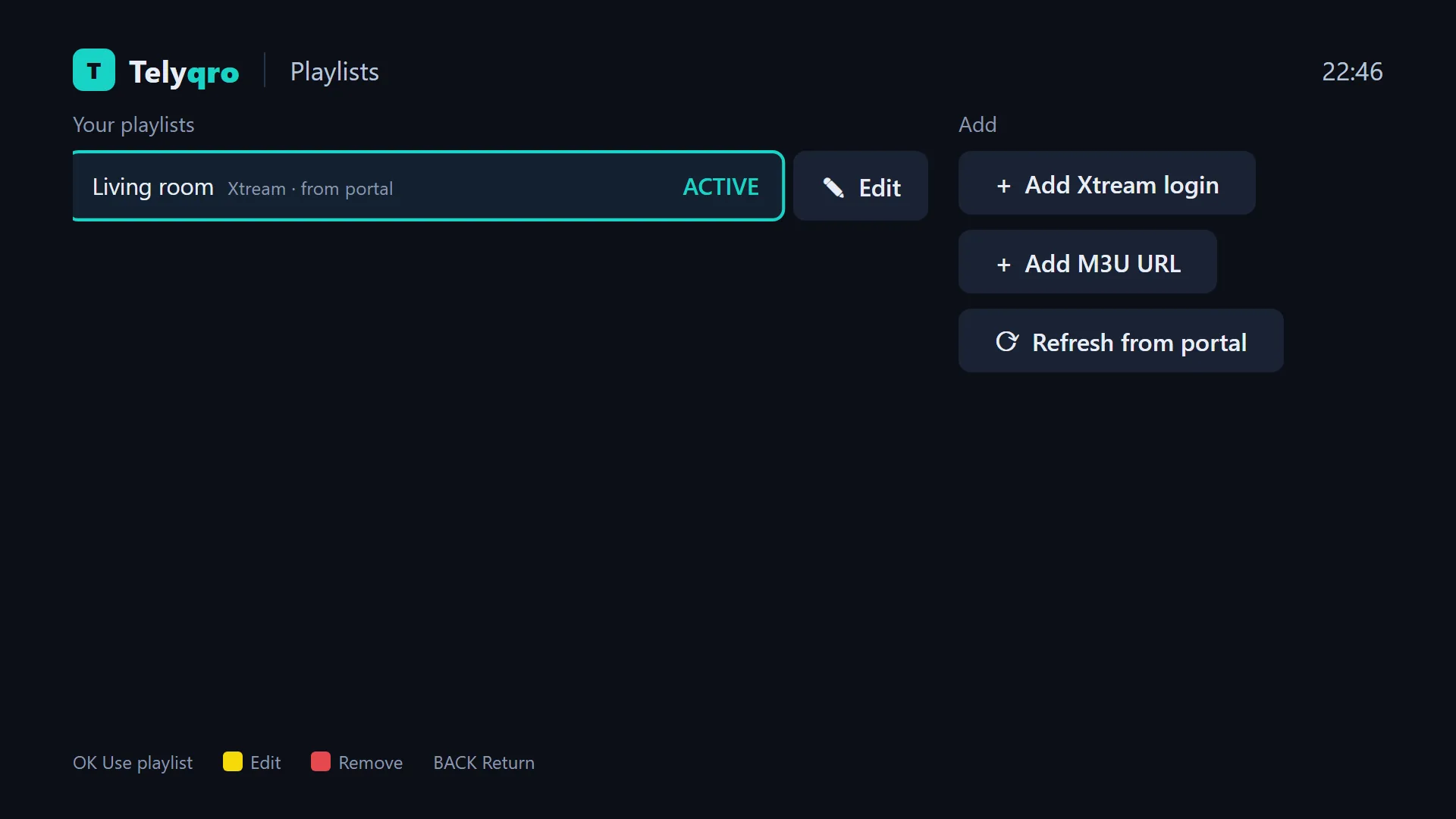
- Open Playlists from the side menu and select Add playlist.
- Choose Xtream Codes and enter the Server URL, Username and Password, or choose M3U URL and paste the link.
- Name it and save. Live TV, films and series import in the background, so you can keep using the app.
Text fields open the TV keyboard, and on most Google TV remotes you can dictate with the microphone button. A long get.php link works too: Telyqro spots it and offers to import it as Xtream, which is faster and adds series.
From your phone or computer
Go to telyqro.com/activate, sign in with the Device ID and Device Key, and add the playlist there. It appears on the TV by itself, and you can upload an M3U file the same way. When the trial ends, this is also where you choose a Yearly or Lifetime plan for the device (see plans). The TV picks up the plan within 30 seconds.
Set up the TV guide
The guide (EPG) is what fills in the programme names next to each channel and the full grid. How you get it depends on your login:
- Xtream Codes: nothing to do. Telyqro loads the guide from your provider’s server along with the channels.
- M3U link: many playlists name their guide inside the file, and Telyqro uses it. If not, ask your provider for the XMLTV guide link and paste it into EPG URL (optional) when you add or edit the playlist.
Open TV Guide from the side menu to see the grid, with a line for the current time. Every channel row in Live TV also shows what is on now and next. The guide refreshes in the background; to change how often, open Settings, then Auto-refresh, then Update the TV guide. If the guide stays empty or shows the wrong times, follow our guide to fix an IPTV TV guide that isn’t showing.
Remote control tips
Telyqro is built to be used with a remote. A few keys make channel surfing much faster:
| Do this | Press |
|---|---|
| Next or previous channel while watching live TV | Up / Down, or CH+ / CH− |
| Jump to a channel by number | Type the digits; it switches after 2 seconds, or at once with OK |
| Go back to the channel you watched before | Last (called PreCh on some remotes) |
| Channel list over the picture, with now and next | OK, then Left / Right to change group |
| Add to favorites, lock, rename or hide | Hold OK on a row, or press Menu |
| Open the side menu | Left from the left edge of the screen |
Channel up and down stay inside the group you are watching, so zapping through a sports group doesn’t drop you into the news. The small remotes of the Google TV Streamer and Chromecast have no number keys, but many TV remotes do, and the channel numbers come from your provider when it sends them.
Questions
Can I install an IPTV player on any Android TV?
Any Android TV or Google TV device on Android 7 or later can run Telyqro. If your TV has the Google Play Store, it qualifies. TVs with another system, such as Samsung (Tizen) or LG (webOS), need their own app, which is coming soon.
Is Telyqro on the Google Play Store?
Not yet. For now you install it with Downloader and the code 7619545, or with the APK from the download page. Both give you the same official app.
Do I need developer mode on Google TV?
Usually not. On most devices, the prompt that appears when Downloader tries to install is enough. Turn on developer mode only if the unknown sources option is missing from your settings.
Does it work on an Android phone too?
Yes. The same app runs on Android phones and tablets with a touch layout. Each device has its own Device ID, its own 14-day trial and its own plan.
Is it legal to use an IPTV app on Android TV?
A player is ordinary software and Telyqro contains no channels. Whether watching is legal depends on the service that provides your playlist, so use one you are legally entitled to.
Every feature on every device, no card needed. Add your playlist and start watching in about a minute.
Keep reading
How to install an IPTV player on a Fire TV Stick
Install Telyqro on any Fire TV Stick or Fire TV with the Downloader app and code 7619545, add your playlist and start watching. Step by step, 2026.
8 min readIPTV TV guide (EPG) not showing? How to fix it
Why the IPTV TV guide is empty, wrong or out of date, and how to fix it: XMLTV links, channel IDs, time offsets and refreshes, step by step.
8 min readHow to choose an IPTV player: a 12-point checklist
What separates a good IPTV player from a frustrating one: big-playlist speed, the TV guide, catch-up, remote control, parental locks, privacy and price.
8 min read