How to set up parental controls for IPTV
IPTV parental control puts a PIN in front of the parts of your playlist that children shouldn’t open: whole groups, single channels, films and series. A good player also keeps locked content out of search, favorites and the TV guide, so it can’t be reached by a side door. In Telyqro you set a 4-digit PIN in Settings › Parental control, lock anything from its menu, and adult groups are locked for you automatically.
Why IPTV playlists need parental controls
A cable box comes with channel ratings and a lineup someone else curated. An IPTV playlist doesn’t. It is a long list of groups and channels put together by your provider, often thousands of entries long, with films and series libraries on top. Large playlists commonly include adult groups sitting between the sports and the cartoons, and nothing in the playlist marks them as unsuitable.
The other reason is the TV itself. The living room TV is shared, the remote is easy to pick up, and children quickly learn where the search box is. Parental control in the player is what decides what they find when they get there.
What good parental control does
A lock on a few channels is a start. These are the things that make it hold up in a real household:
- Locks at every level: a whole group with one action, but also a single channel, film or series when the rest of the group is fine.
- Finds adult groups for you, so you don’t have to scroll through thousands of entries to make the playlist safe.
- No side doors: locked content stays locked in search, favorites, recently watched, the TV guide, channel numbers and channel zapping, not just in the main list.
- Doesn’t nag adults: one PIN per evening, not one per channel.
- Locks itself again when the TV is left alone, so you don’t have to remember.
- Resists guessing: repeated wrong PINs slow things down, and the PIN can’t be read back from the device.
- Survives a reinstall, so clearing the app isn’t a way around it.
If you are still choosing an app, these points are part of our checklist for choosing an IPTV player.
Step 1: set a parental PIN in Telyqro
- Open Settings and go to the Parental control section.
- Choose Set PIN and enter 4 digits.
- Enter the same 4 digits again to confirm. Telyqro shows “Parental PIN saved”.
Pick a PIN your children haven’t seen you type elsewhere, and avoid the obvious ones such as 0000 or 1234. Since you just chose it, Telyqro leaves locked content unlocked for the moment, so you can set things up without typing it again and again.
Step 2: lock groups, channels, films and series
Anything in your playlist can be locked from its menu:
- Find the group, channel, film or series. Groups are in the category rail beside the lists of Live TV, movies and series.
- Open its menu: hold OK on the remote or press Menu, select the ⋯ button on the row, long-press on a touch screen, or right-click with a mouse.
- Choose Lock. A short message confirms “Locked:” and the name.
Locking a group covers everything in it. Locking a series covers all its episodes. If you try to lock something before you have a PIN, Telyqro asks you to choose one first, since you’ll need it to unlock what you lock. To remove a lock, open the same menu and choose Unlock; that asks for the PIN.
Locks belong to the playlist they were made in. If you have more than one playlist, check the locks in each. Settings › Parental control lists every locked group and item of the playlist you’re using, under “Locked groups & items”, so you can review them in one place.
Adult groups are locked automatically
Lock adult groups automatically is on from the start. Telyqro recognises adult group names in many languages and locks those groups as soon as a PIN exists, without you having to find them. It is careful with lookalikes: a cartoon block called “Adult Swim” or a place name that happens to contain the letters isn’t caught. Automatically locked groups appear in the list as “Auto (adult name)”. You can unlock one of them on its own if it was caught by mistake, or turn the setting off.
No name-based check can be perfect, because providers name groups however they like. After setting up, spend a minute in the category rail and lock anything the automatic check missed.
How locks behave day to day
One PIN per session
When someone opens a locked group or item, Telyqro asks for the PIN once. After that, all locked content stays open for the session, so an adult can zap between locked channels without typing it on every one. In Settings › Parental control, Unlock for this session does the same up front, and Lock again closes everything at once, which is handy when you hand the remote over.
It locks again by itself
The setting Lock again after (in the background or idle) offers 1, 5, 15, 30 or 60 minutes, with 5 as the starting value. The timer runs while the app is in the background and while nobody presses a key or touches the screen. When it runs out, locked content needs the PIN again. If that happens during a locked film, the picture is replaced by “This content is locked” until someone enters the PIN. If you watch long films from a locked group, choose a longer time.
Masked or hidden, everywhere
Under Locked content you choose how locked things look while the session is locked:
- Show with a lock icon: the row stays in place, marked as locked, without its name or logo. Everyone can see something is there, but not what.
- Hide it: locked groups and items disappear from view, as if they weren’t in the playlist.
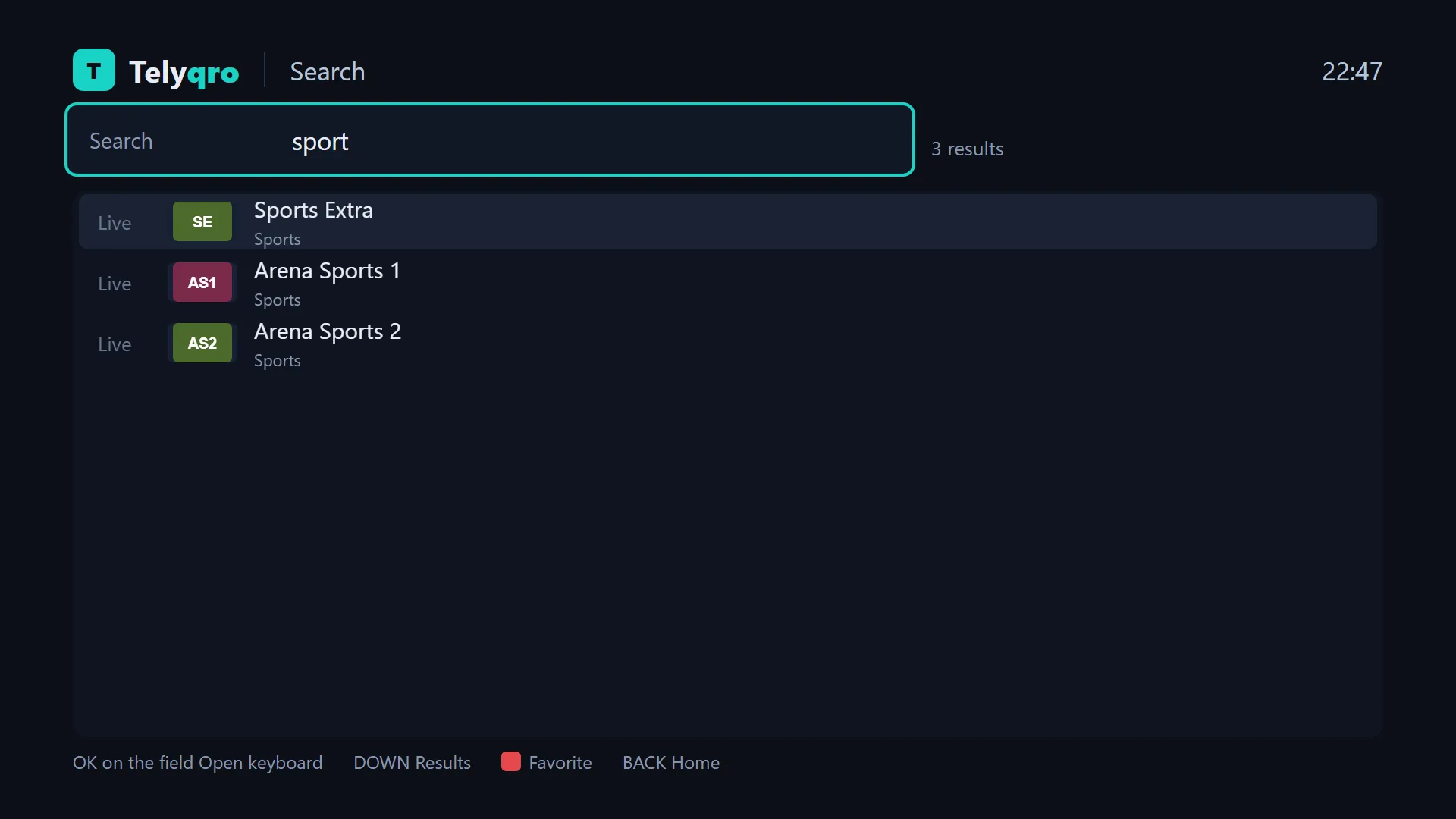
Either way the rule applies across the app: lists and the category rail, search results, favorites, recently watched, the home screen, the TV guide and now and next, channel up and down, typing a channel number, the previous-channel key and the quick channel list over the video.
How the PIN is protected
- Guessing is slowed down. After five wrong PINs in a row, Telyqro makes you wait 30 seconds, and the wait doubles with each further mistake, up to 15 minutes. Restarting the app doesn’t reset it.
- The PIN itself is never stored. Telyqro keeps only a salted hash, a one-way fingerprint of the PIN that can check an answer but can’t be turned back into the digits.
- Changes need the PIN. Changing settings and seeing the list of locks need an unlocked session. Change PIN always asks for the current PIN, even when the session is unlocked. Remove PIN asks for it too; your locks are kept but not enforced until you set a PIN again.
- Locks are backed up. The PIN, locks and parental settings are backed up with your favorites and settings, and restoring from Settings › Backup & restore asks for the PIN. After a reinstall, Telyqro offers to restore the backup, so the locks come back with everything else.
Combine it with your TV’s own controls
Locks inside Telyqro decide what can be watched in the app. Your device’s own controls decide which apps can be opened, and what can be bought, in the first place. The two work well together.
- Fire TV: parental controls are in Settings, under Preferences. They use their own PIN, and can require it for purchases and for opening apps, besides restricting Amazon video by rating. Amazon explains the options in how to set up parental controls on your Fire TV.
- Google TV: a kids profile lets you choose which apps a child can use, set daily screen time and a bedtime, and needs your PIN or password to leave the profile. Kids profiles aren’t available in every region or on every device. See Google’s page on parental controls on Google TV.
Menu names change between software versions, so if a path above doesn’t match your TV, look for “Parental controls” or “Profiles” in its settings. To get Telyqro onto these devices, see how to install an IPTV player on a Fire TV Stick and IPTV on Android TV and Google TV.
Questions
How do I block adult channels on IPTV?
Use a player with parental control. In Telyqro, set a PIN in Settings › Parental control: groups with adult names are then locked automatically. Lock any channel or group it missed from the item menu, and choose Hide it if you’d rather locked content didn’t appear at all.
Do locked channels still show up in search?
Not in a usable way. While the session is locked, locked channels, films and series are masked or hidden in search results, favorites, recently watched and the TV guide, just as in the lists.
Do I have to enter the PIN for every channel?
No. One correct PIN unlocks locked content for the session. It locks again after the time you choose, from 1 to 60 minutes in the background or idle, or straight away with Lock again.
Will my locks survive reinstalling the app?
Yes. The PIN and locks are backed up with your settings, and Telyqro offers to restore them after a fresh install. Restoring asks for the PIN.
Can my IPTV provider remove adult channels for me?
Some providers can supply a playlist without those groups, so it’s worth asking the service you subscribe to. Keep the player’s locks on as well: providers add and rename groups over time.
Every feature on every device, no card needed. Add your playlist and start watching in about a minute.
Keep reading
How to choose an IPTV player: a 12-point checklist
What separates a good IPTV player from a frustrating one: big-playlist speed, the TV guide, catch-up, remote control, parental locks, privacy and price.
8 min readHow to watch IPTV on Android TV and Google TV
Get an IPTV player on Android TV, Google TV, Chromecast, Shield or a TV box: install the app, add your Xtream or M3U playlist and set up the TV guide.
7 min readHow to install an IPTV player on a Fire TV Stick
Install Telyqro on any Fire TV Stick or Fire TV with the Downloader app and code 7619545, add your playlist and start watching. Step by step, 2026.
8 min read